The new way to prep
Prep it once.
Shoot it from your pocket.
Shot lists, blocking, locations and the day's clock — the whole camera department's prep, built on the laptop and carried onto set on your phone. For DPs, gaffers, directors and everyone in between.
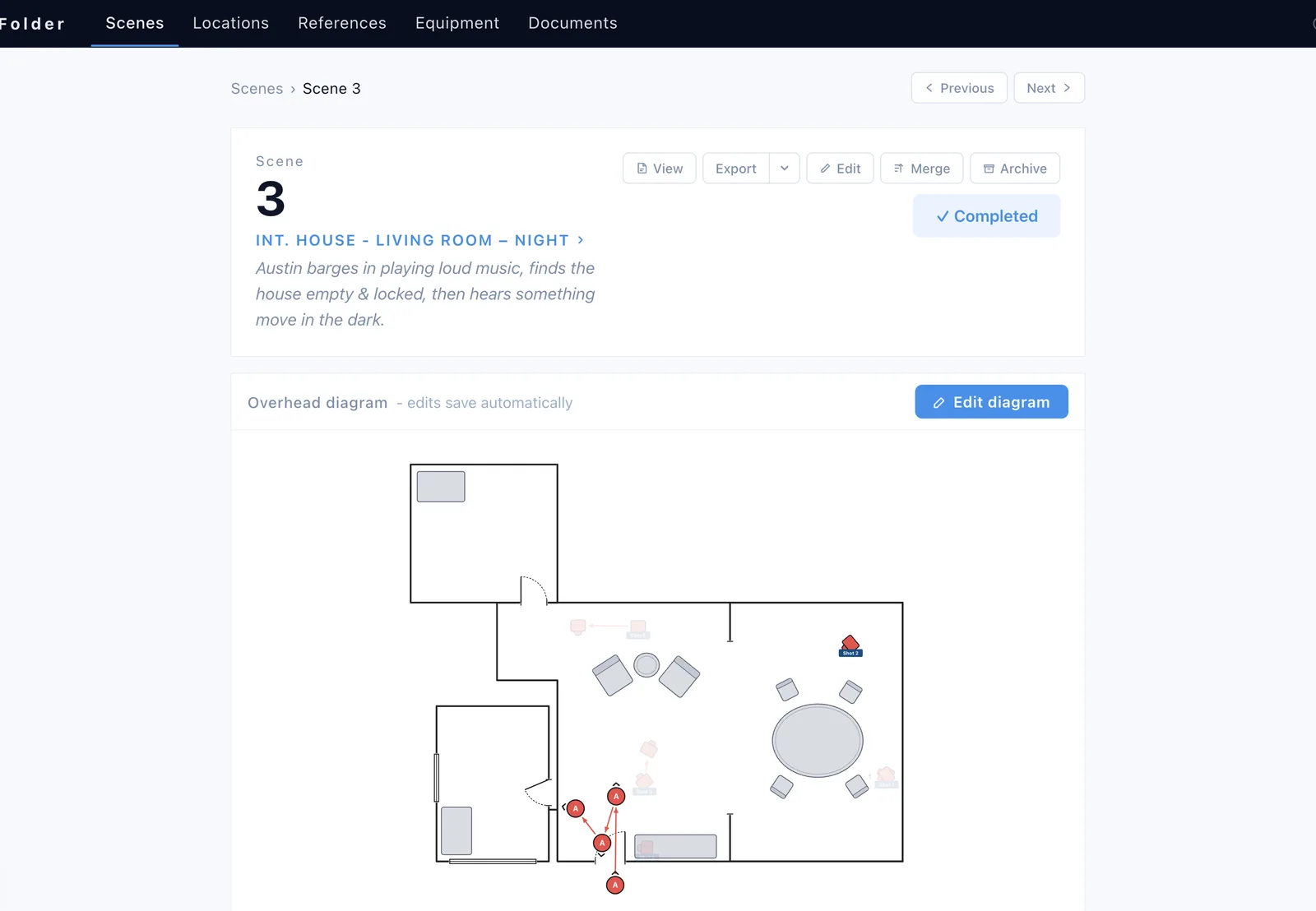
Prep, from script to wrap
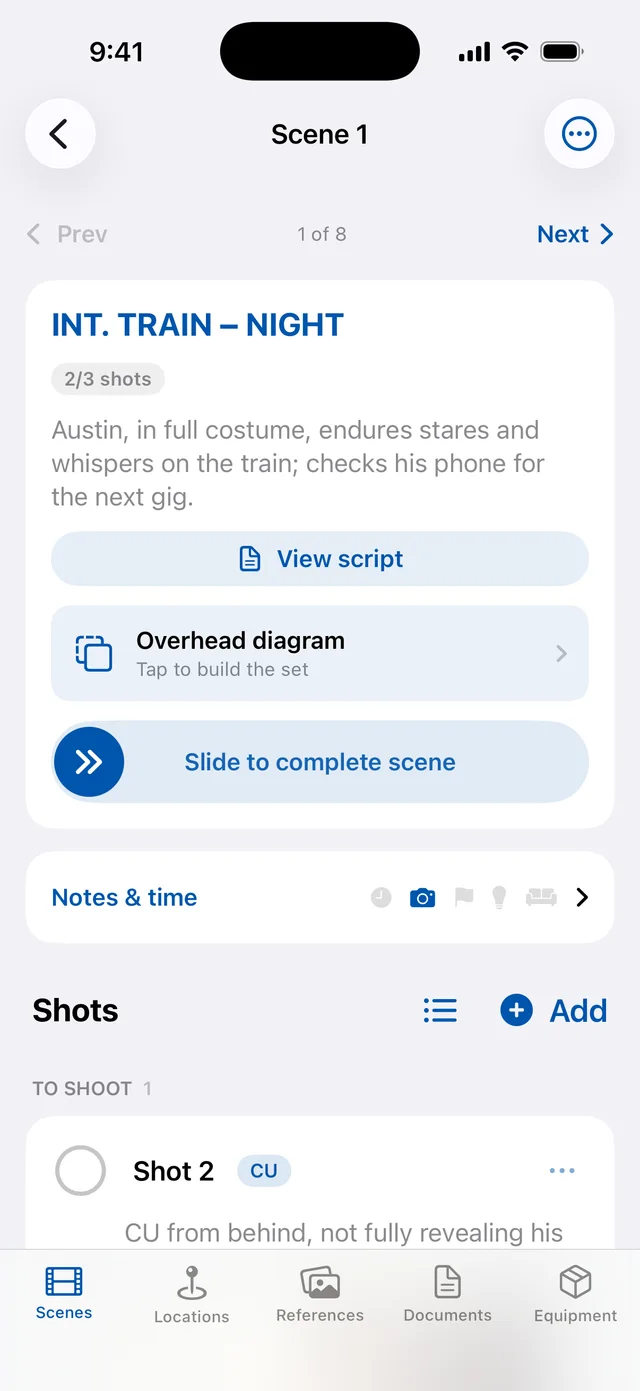
- Start with the script. Drop in the PDF and your scenes and locations are created automatically — read straight from the script, no AI guessing.
- Prep every shot. Sizes, lenses, stills and notes for each shot, grouped by scene.
- Line it up with the schedule. Import the AD's industry-standard schedule so your prep follows the shoot order.
- Take it to set. Mark shots done and see how fast you're really shooting — and how long a shot takes you on average.
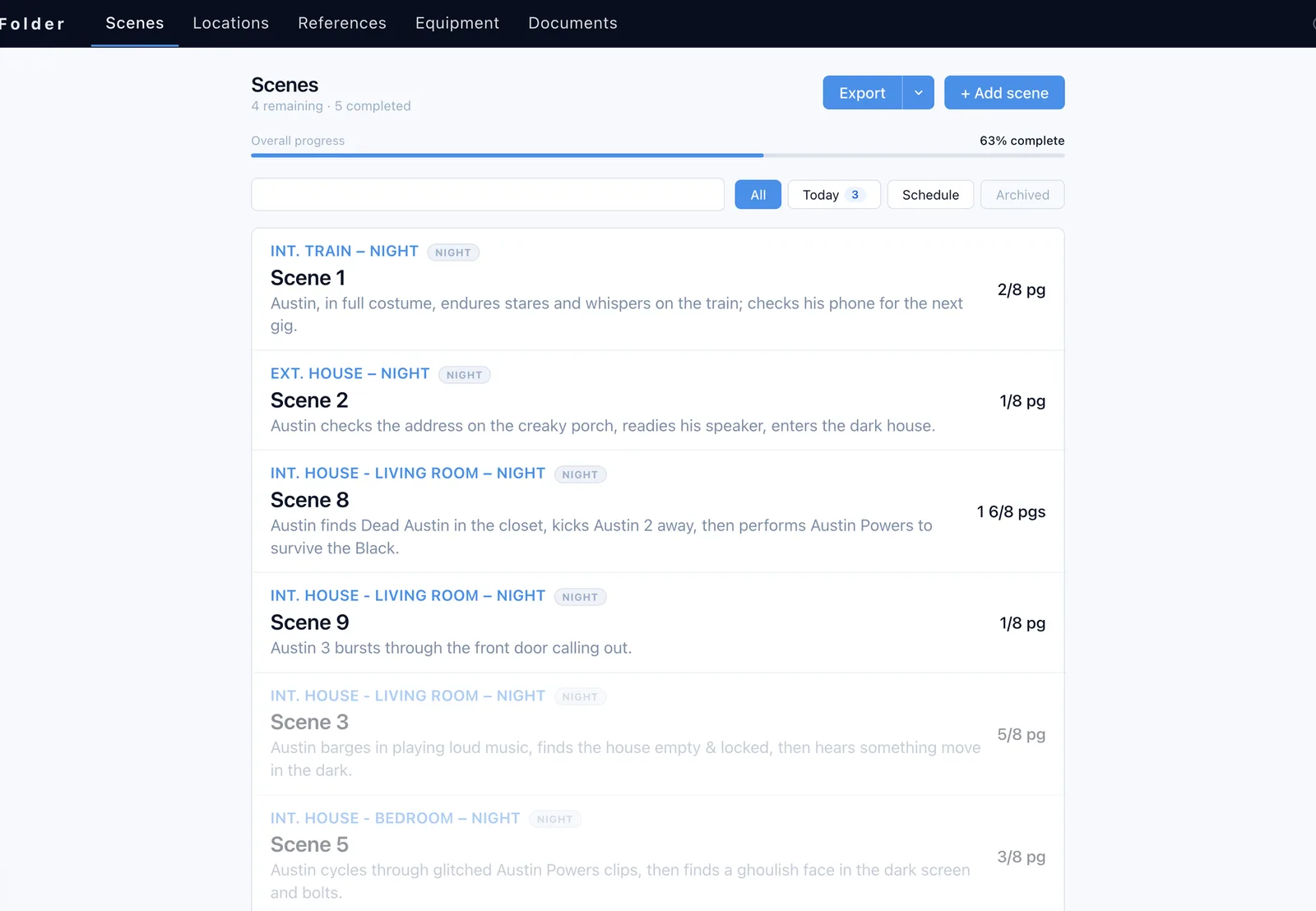
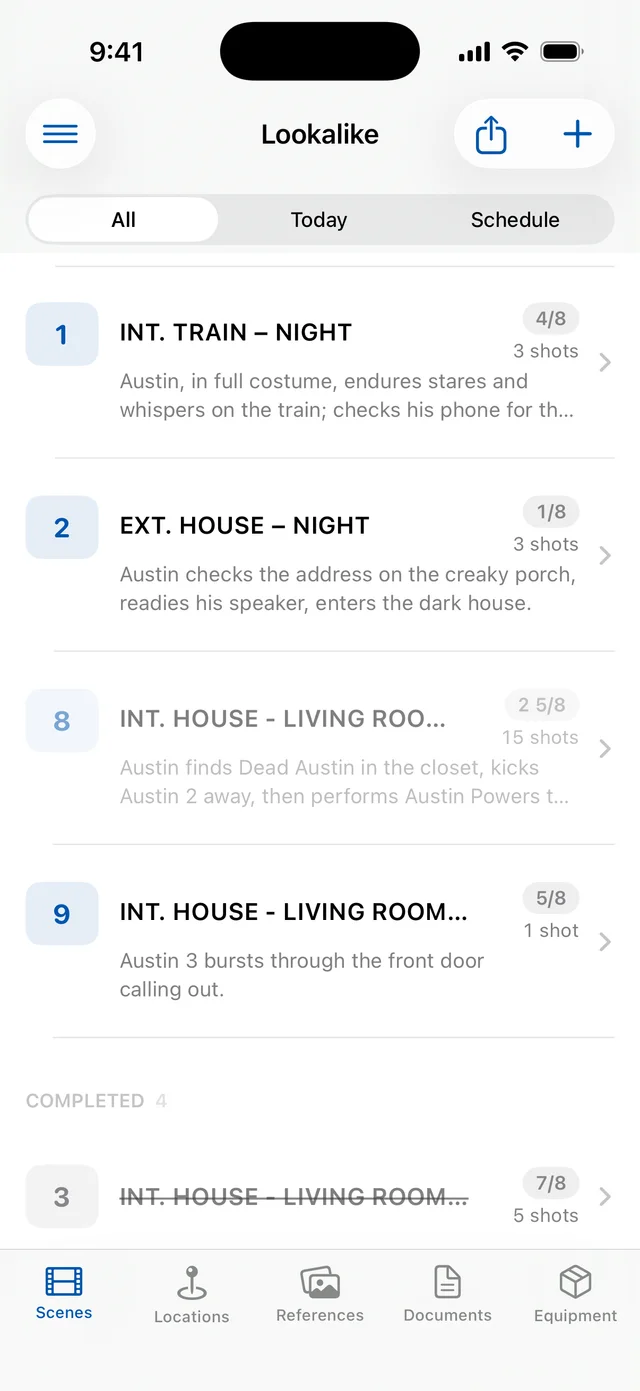
Every scene, at a glance
Slugline, page count, how many shots are prepped and done — for the whole script, in script order. Filter to today's list or the schedule in one tap.
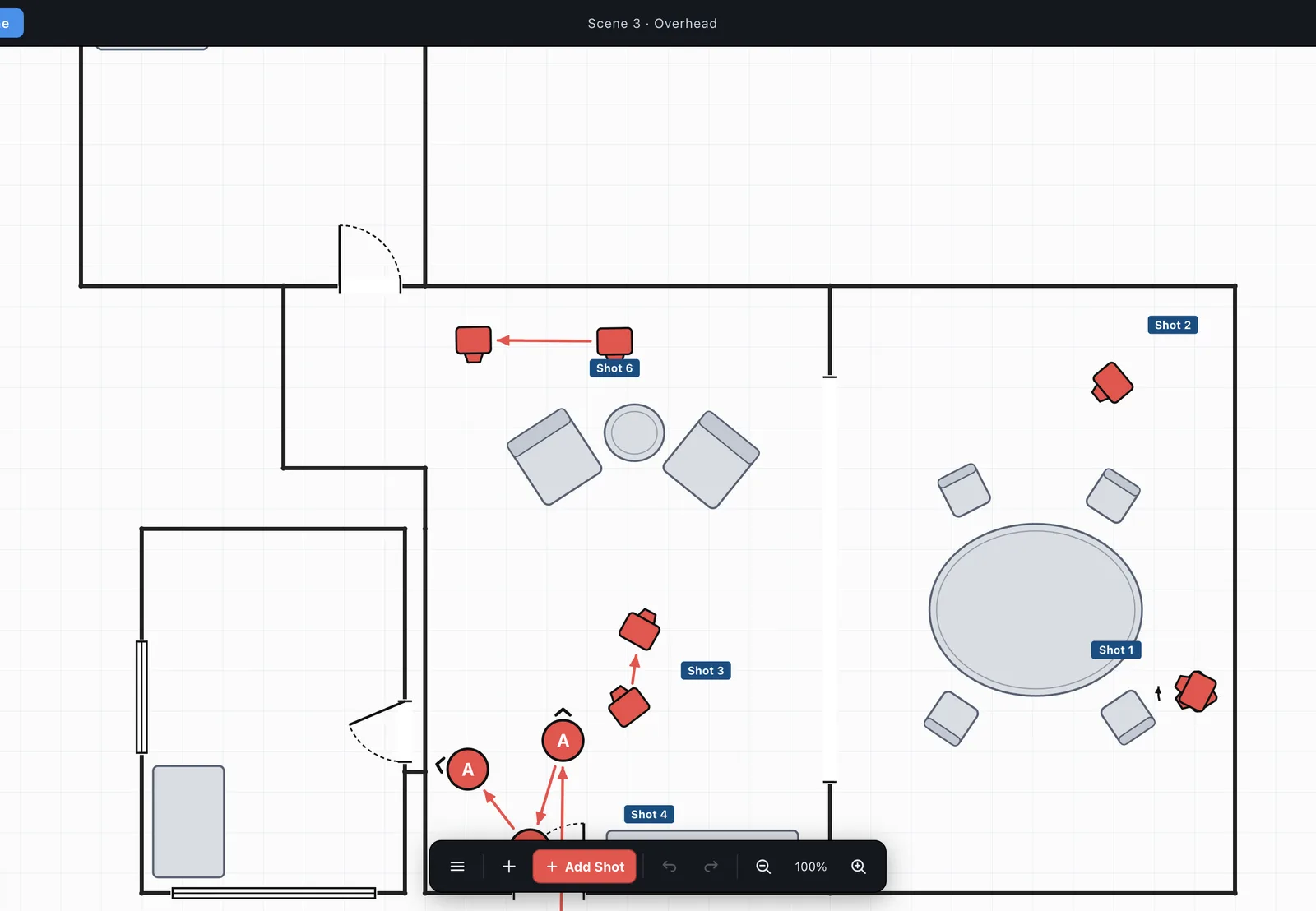
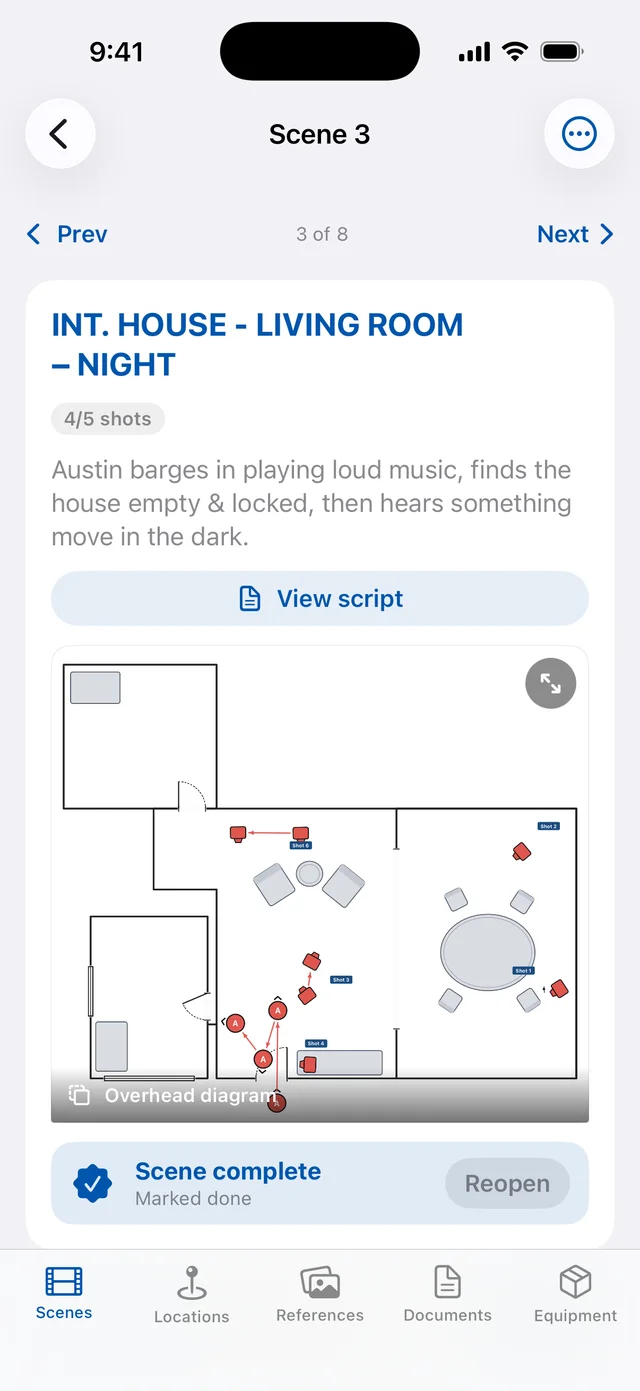
Block it before you're there
Draw the set, place the cast and cameras, and track the moves. Every camera is a shot on the list, so the diagram and the shot list never disagree.
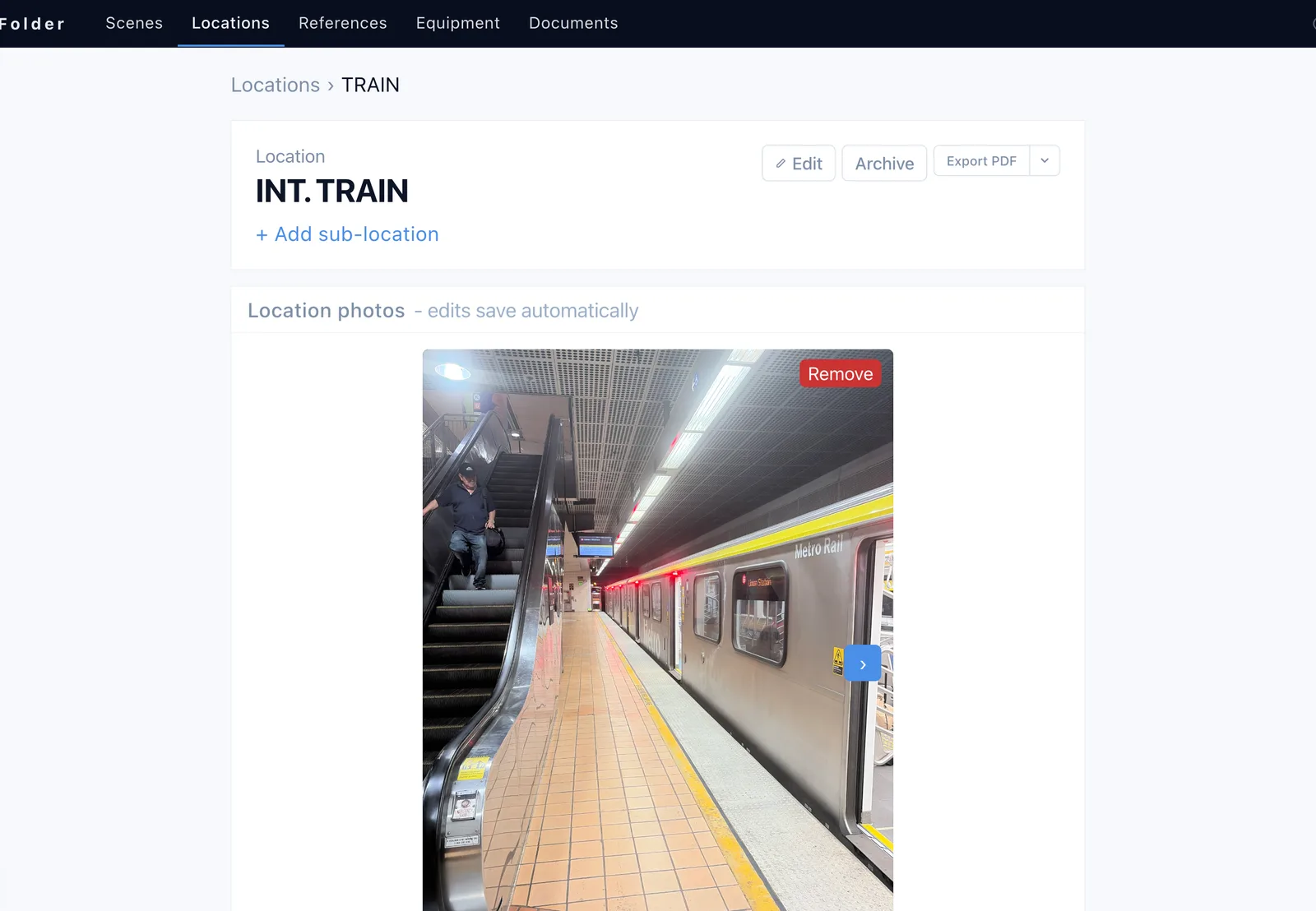
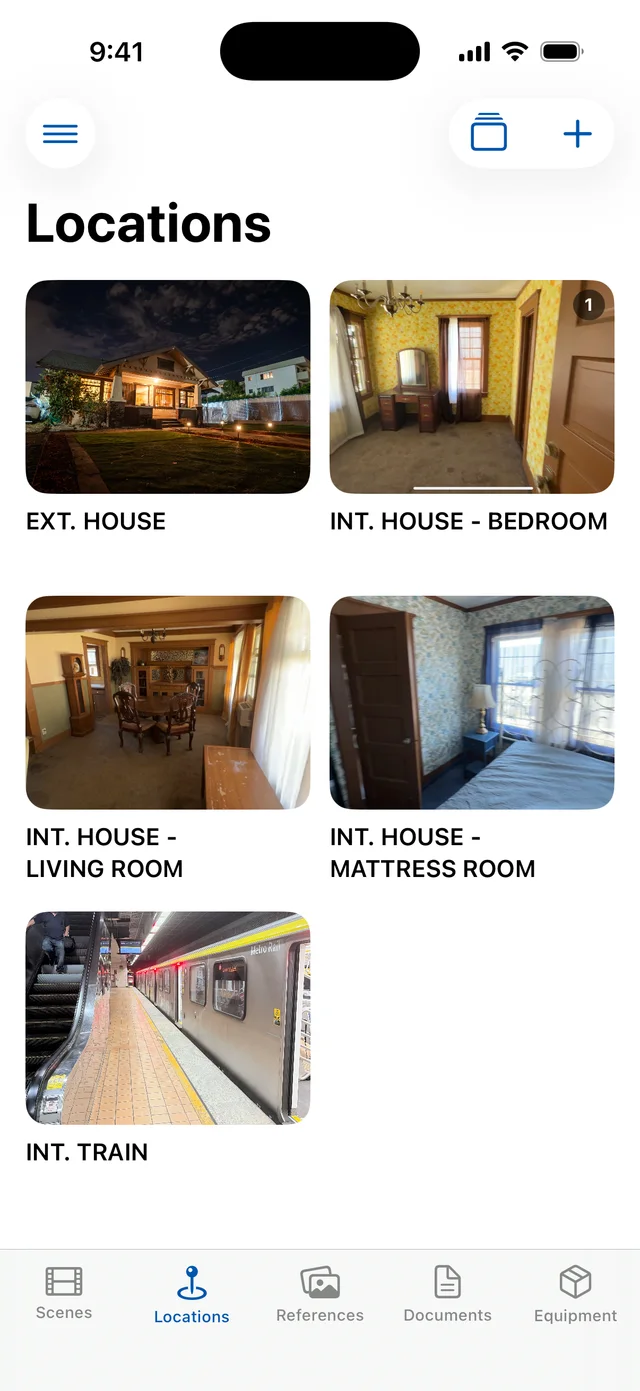
Scout it, prep it, share it
Scout photos, sun paths and notes for each department — lighting, grip, production design — in one place the whole crew can open.
Then the clock takes over
Enter the call time and the day is timed for you. Every shot you mark done records how long it took, so you always know how your prep held up.
- How long each shot and scene took
- Ahead or behind against your estimates
- Projected wrap against the plan
- Push a scene you won't get to — it stops counting against the day
Prep better, shoot after shoot
The dashboard adds up every day you've tracked — so you can quote a schedule, and prep for it, from your own numbers.
Plus a day-by-day breakdown, and how your shot sizes move across the story.
Take the photo. It's already in your prep.
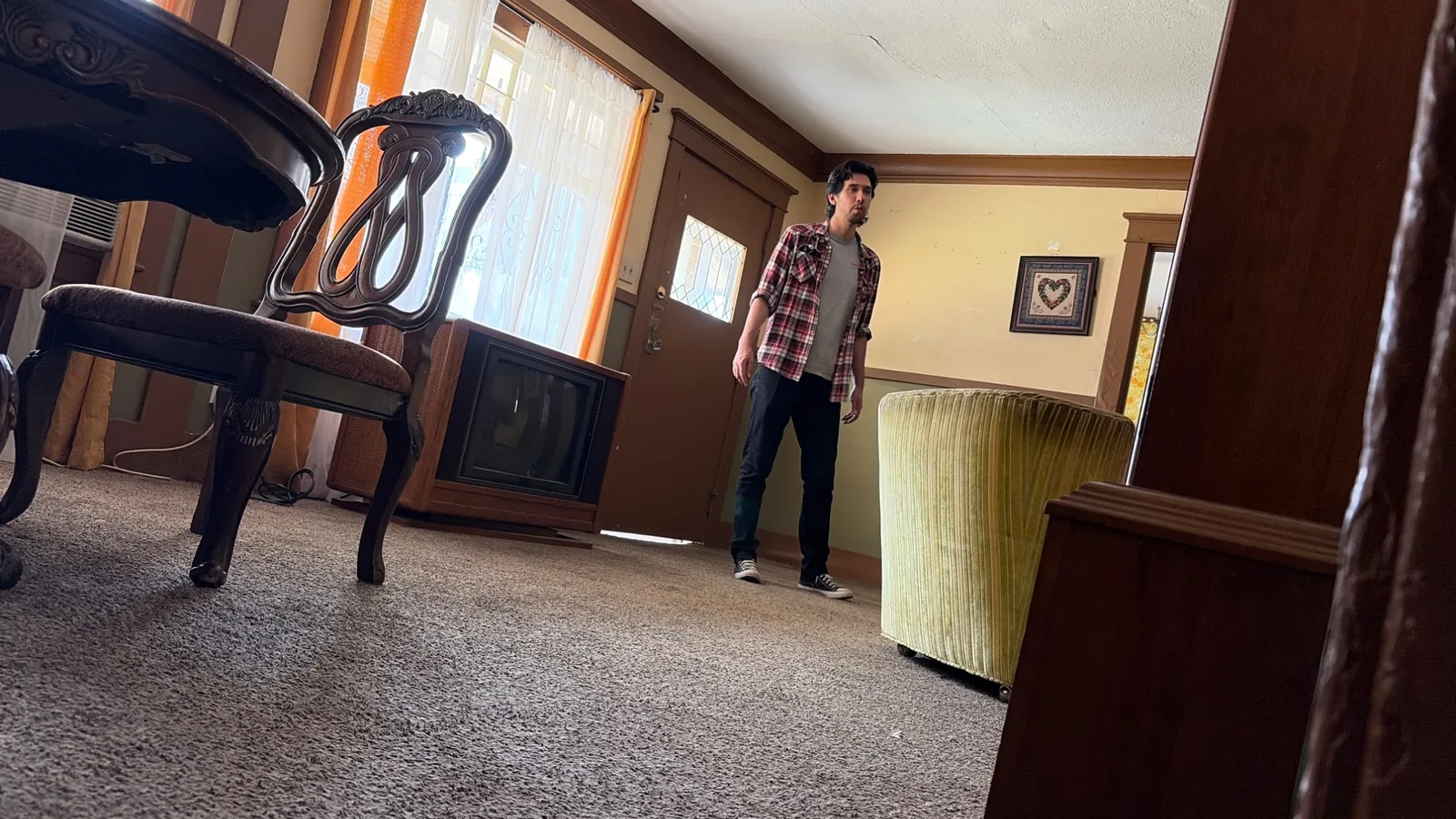
No separate viewfinder app. Open a shot, frame it with your own camera and lenses, and tap — the still lands right on the shot. Nothing to switch to, nothing to import.
- Open the viewfinder app
- Take the photo
- Save it to Photos
- Switch back to your prep
- Import it
- Tap the camera on the shot
- Take the photo
- It's on the shot
Set your camera, recording mode and lens kit once — the frame shows exactly what your sensor sees.
Your prep, even with no signal
Scout and shoot your photos with no service — they upload on their own once you're back in range.
Bring the whole team into the prep
One-email invites
A link that signs them straight in. No passwords.
Story view
Directors see shots and scenes, not the technical prep.
PDFs for the crew
Shot lists with stills and location sheets, ready to send.
Web and iPhone
One project, always in step.